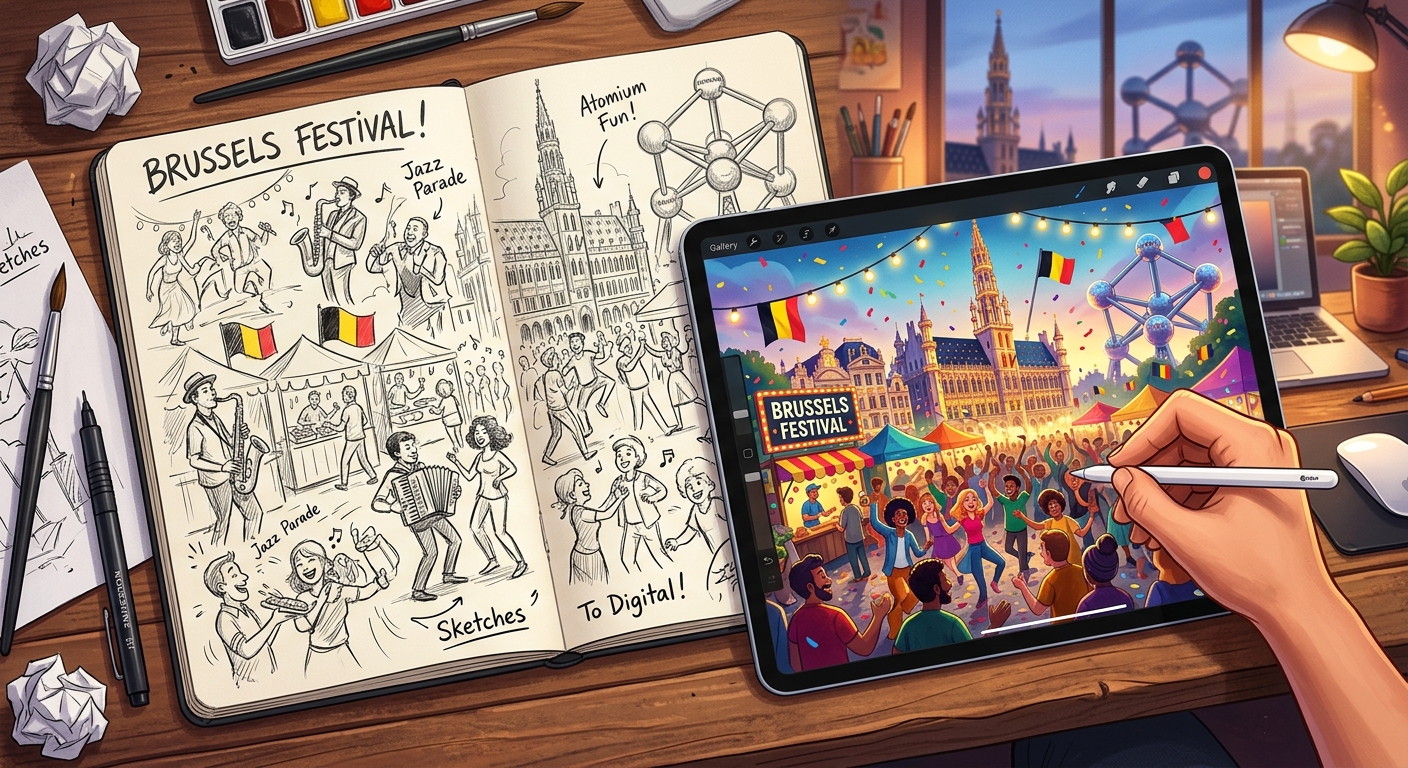
You spent a week with a pen in your hand and Brussels in front of you. Your sketchbook holds café terraces, Gothic church facades, tram lines disappearing into evening fog. Now you're home. The bag is unpacked. And those pages are sitting closed on your kitchen table. Getting them from paper into the digital world does not have to be complicated. A few solid habits after you unpack will protect your work and give it a long life online and in print.
Post-Festival Workflow at a Glance
- Photograph your sketches in natural, indirect light before you edit anything
- Use free mobile apps to correct white balance, boost contrast, and crop tight
- Match your file format to the intended use: JPEG for online shares, PNG for transparency, SVG for print-ready linework
- Convert clean linework to a scalable vector format for postcards and prints that stay sharp at any size
- Use a free AI SVG generator if you want crisp vector files without learning professional software
The First Thing to Do Before You Open Any App
Before you touch a phone or a laptop, sit down with your sketchbook while the trip is still fresh. Write the location and date on pages where you forgot to do it in the field. Add a word or two about the weather, the time of day, the mood. Once a few weeks pass, those details blur together in ways that are hard to recover.
The same goes for loose pages or torn-out sheets. Gather them now. A Brussels city sketch unlabeled and stored in a random folder becomes much less meaningful six months later. A minute of note-taking now saves a lot of frustration when you want to caption a post or label a print.
Getting the Light Right for Sketch Photography
Good photography starts before any editing app opens. The most common mistake people make is shooting in warm indoor light with the phone flash on. The result is a yellowed, glare-streaked image that no filter will fix after the fact.
The better approach is natural, diffused daylight. Place your sketchbook flat on a table near a window on an overcast day. Overcast skies act like a giant softbox. They spread light evenly and remove harsh shadows. Avoid direct sunlight, which creates bright spots on paper that blow out texture and kill fine line detail.
Keep these points in mind when setting up your shot:
- Hold the camera directly above the page, not at an angle, to avoid keystoning and distortion
- Turn off any automatic HDR or beauty filters in your camera settings before shooting
- Shoot in the highest resolution your phone allows
- Take three or four frames of each sketch and pick the sharpest one rather than relying on a single shot
If you have a DSLR or mirrorless camera, use it. A modern smartphone with steady hands and good light will give you files that are more than adequate for web sharing and A6 postcard printing.
Free Apps That Handle the Editing Without Fuss
You do not need Photoshop. Snapseed, available free on iOS and Android, is non-destructive and designed for exactly this kind of work. Lightroom Mobile's free tier handles raw files well if your phone shoots in that format. For a hand-drawn sketch, a typical edit takes about two minutes once you know the steps.
- White balance: Shift the temperature slightly cooler to bring the paper back toward true white, especially if you shot under incandescent light.
- Exposure and contrast: Lift the shadows very gently to reveal pencil texture. Boost contrast to make ink lines crisp and readable.
- Crop: Tighten the frame so there is a small, even border around the drawing. Remove fingers, table edges, and spiral binding where possible.
- Sharpen lightly: A small amount of sharpening recovers fine detail that hand-holding a phone tends to soften slightly.
- Export: For social media, JPEG at 80 to 85 percent quality gives a compact file with no visible loss of quality.
Resist the urge to over-edit. Heavy filters and aggressive saturation boosts make a sketch look more like a digital illustration and less like the thing you actually drew in the rain outside the Bourse.
Choosing the Right File Format for Each Job
Not all digital files behave the same way. A JPEG that looks great on Instagram may print poorly as a postcard. Understanding the core differences between your main options saves time and avoids disappointment when a print order arrives.
File Formats and What Each One Is Built For
| Format | Best Use | Print Quality | Scales Cleanly? | File Size |
|---|---|---|---|---|
| JPEG | Social media, email, web sharing | Good at 300 DPI or above | No, loses quality when enlarged | Small |
| PNG | Web with transparency, digital mockups | Good, lossless compression | No, still pixel-based | Medium to large |
| SVG | Postcards, print, merchandise, web icons | Perfect at any size | Yes, infinitely scalable | Very small |
Converting Hand-Drawn Linework to a Scalable Vector File
Pixel-based files have a ceiling. If you photograph a sketch at 3000 pixels wide and then try to print it at ten inches across at 300 DPI, the math barely works. Try to print at sixteen inches and the image begins to look soft at the edges. Urban sketches tend to have clean, expressive pen lines that print beautifully. It is worth getting them into a format that honours that quality.
Vector files do not share this limitation. They are built from mathematical paths rather than pixels. A Brussels skyline drawing in vector format can go on a postcard or a tote bag with identical crispness either way. SVG, which stands for Scalable Vector Graphics, is the standard format for this kind of file. It is an open vector standard maintained by the World Wide Web Consortium, and it works natively in browsers, print software, and most modern design tools.
The traditional route to an SVG runs through Adobe Illustrator or the free application Inkscape. Both have a live-trace function that converts a scanned sketch into vector paths. Inkscape costs nothing to download. Both tools work well. But the learning curve is real, particularly for someone who spent the past week drawing with a pen in a square, not sitting at a desk in front of menus and toolbars.
A more accessible starting point for beginners is to run a clean photograph of your linework through an AI SVG generator. You upload the image and receive a scalable vector file ready for print or web. The results are best on high-contrast ink drawings with clear, confident outlines. Watercolour washes and soft pencil work trace less cleanly. For the bold pen sketches that urban sketching tends to produce, the output is very usable with minimal cleanup. It is not a replacement for learning vector software if you plan to build a serious digital practice. For a festival attendee who wants print-ready files without a steep new skill to climb, it closes the gap between analogue work and digital sharing quickly.
Preparing Your Sketches as Print-Ready Postcards
Postcards are one of the nicest ways to give your Brussels sketches a physical afterlife. Print services like Moo, Printful, and local European printers accept digital files in the A6 format, which is 148 by 105 millimetres. Most require at least 300 DPI at final print size and a small bleed area on each edge.
Checking your print resolution before uploading prevents the disappointment of blurry output. The 300 DPI benchmark is the established standard for photographic and illustrated print work. Anything below it will look noticeably softer in a finished print even if it looks clean on screen, because screens typically display at 72 to 96 DPI. What passes at screen resolution can fall apart in ink on paper.
If your sketch is in SVG format, resolution is not a concern at all. The file prints sharp regardless of output size. Drop it into the printer's template, position it, and send the order. For JPEG files, check your pixel dimensions before committing to a print run. A 3000 by 2000 pixel image at 300 DPI gives you a printable area of roughly ten by six and a half inches, which is comfortably above A6 size. If your phone shot came in at 1200 by 800 pixels, you are below the threshold. Re-shoot in better light or convert to vector before printing.
Many people from Drawing Week Brussels also print small sets of postcards to send to sketching friends they met at the festival, or to keep as tangible records of where they drew. An afternoon of prep work translates into something you can hold in your hand and mail across a continent.
Your Brussels Sketchbook Deserves to Outlast the Week
A sketchbook carried through a festival is a real record of a real place. The pages hold something that no photograph quite captures: the decisions you made about what to draw, what to leave out, where the pen slipped, how the light fell on a particular afternoon in the Sablon. Every sketch is a compressed version of an hour you spent paying close attention to something most people walked past without stopping.
Getting those pages into a digital format does not diminish any of that. It protects it. A photographed or scanned sketch can be backed up, shared with other urban sketchers you met during the week, printed as a card for someone who was there with you, or posted to a community where people will immediately recognize the street you were sitting on.
The process asks very little of you. It takes an afternoon, some window light, two free apps, and a small amount of patience with file formats. The result is work that travels further and lasts longer than paper alone.
Start with the pages you are most proud of. The ones you knew were good even while the ink was still wet. Get those right first. The rest of the sketchbook will follow naturally from there.